Missing items are automatically created in Restaurant365 when an AP transaction is imported or entered and includes a Vendor Item Number that does not exist.
A missing item applies only to an invoice that already exists in Restaurant365. If an invoice has not been entered into the system at all, it will not appear on the Invoices grid or in AP Transactions. For help locating an existing invoice, see AP Invoices Overview & Security.
The following are scenarios in which a missing item would be created:
An invoice includes a new product that has not been previously purchased and therefore does not exist in the system.
The vendor discontinued a product and replaced the product with a similar product or different brand.
The vendor changed the item number of the product.
An invoice includes a different unit of packaging that uses a different item number.
For issues #1 and #2, a new purchased item must be created.
All four issues require that the new vendor item is assigned to a purchased item.
For a quick view into AP transactions that have missing items, review the Missing Items column in AP Transactions. Transactions with missing items will be flagged with a Yes in this column.

Missing Item Solutions
Missing items can be assigned using the following methods:
On the Missing Items tab of the AP Invoice record
To-do Checklist - Record Setup tab
Vendor Item list
The easiest method is on the AP invoice record. The other two methods allow you to open the Vendor Item Record and perform a manual update.
Identify a Missing Item
When entering an AP invoice or credit memo, review the Line Items. Click an item name.
From the drop-down, select Missing Item.
This allows the user to complete the invoice or credit memo.
Complete the invoice or credit memo and select an option from the Save menu to save changes to the document.
A user with the appropriate permissions can then review the document and assign the missing item on the Missing Items tab. See below.
Assign a Missing Item
After saving an AP invoice or credit memo that contains a missing item, the Unlinked Items filter will have items.
When entering an AP invoice or credit memo, click the Unlinked Items quick filter.
Click the Assign button from the first column, beside the missing vendor item.
The Vendor Item Assign window appears.
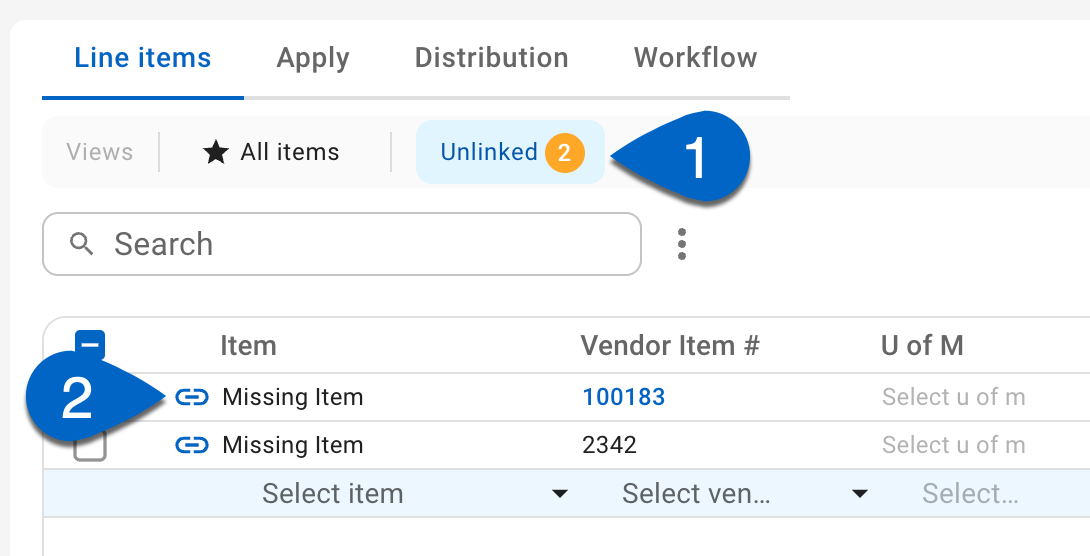
Follow the prompt to either link an existing item or create a new item. Read more about the link item window.
To-Do Checklist
Review the To Do Checklist and update the missing item records:
Open the To-Do checklist and select the Record Setup tab.

For each Vendor Item record type, click on Missing Record Name to open the Vendor Item record and update accordingly.
Continue the process until there are no remaining items on the Record Setup tab.
Vendor Items List
Update missing item records from the Vendor Items list:
Open the Vendor Items page in the Inventory application.

Filter the Vendor column to include only the vendor of the AP invoice with missing items.
This step can also be performed through the Import Tool. In place of opening each record in Step 3, export the list and update the missing values (Item, Purchase U of M, Split U of M, Contract Price, Split Contract Price, Contract Expiration and Acceptable Variance %). Save the file as a .CSV and then use the Import Tool to perform an Update Existing on Vendor Item records.