New AP Credit Memo Experience
The content in this article reflects the classic accounting AP credit memo experience. The AP credit memo is now a unified record. Read more about the new AP credit memo experience.
AP Credit Memos can be entered in Restaurant365 to record any credits that are due. Credit Memos can then be applied to Open AP Invoices. If the Credit Memo has a 'Document Issues' tab listed, click here to learn how to resolve Document Issues.
Navigation
Create an AP Credit Memo in the Create menu
1) Open the Create menu.
2) Select Credit Memo. 
Create an AP Credit the AP Transactions page
1) Open the Accounting application.
2) Expand the Accounts payable category.
3) Select AP transactions.
4) Click Create.
5) Select AP Credit Memo.

View an Existing AP Credit Memo
1) Open the Accounting application.
2) Expand the Accounts payable category.
3) Select AP transactions.
4) Click the desired AP Credit Memo number to open the transaction record.

Vendor credits issued as a check or ACH follow a unique process when entered in R365. Click here to learn how to reconcile these Check or ACH Vendor credits.
Security
The permissions listed here are associated with AP Credit Memos within Accounting. These Permissions can be added to Custom User Roles or single Users. Learn more about managing Permissions and Custom User Roles here.
These Permission are for Accounting only and do not provide access to AP Credit Memos within the Inventory app.
AP Credit Memos Permissions are found in the Permission Tree as follows:
Accounts Payable
AP Credit Memos
View AP Credit Memos Within Accounting
Edit AP Credit Memos
Create AP Credit Memos
Approve AP Credit Memos
Unapprove AP Credit Memos
Void AP Credit Memos
Unvoid AP Credit Memos
Delete AP Credit Memos
The Permission Access report can be used to determine which User Roles or Users already have these Permissions assigned.
Learn more about User Setup and Security here.
AP Credit Memo Header

Field | Description | |
|---|---|---|
1 | Transaction and Operations Status | Displays both the Transaction status and Operations status for the credit memo.
|
2 | Location | The location for the AP credit memo header. This defaults to the user’s default location but can be changed. When updated, the Location field in the Details grid also updates to match.
|
3 | Vendor | The vendor from whom the credit memo was received. Once selected, the vendor address appears below AP Credit Memo in the top ribbon, and any applicable 1099 information displays next to the GL date for quick reference.
|
4 | Credit number | The credit memo number. If a number is not provided on the document, a value must be entered manually. R365 checks this number against other credit memos for the same vendor when the record is saved, updated, or reopened. Depending on the Duplicate AP Invoice and Credit Memo Numbers preference in System Preferences, a matching number and vendor combination displays a warning banner or blocks the save with an error message. |
5 | Document date | The date shown on the credit memo document. |
6 | GL date | The date the credit memo posts to the general ledger. If this date differs from the Document date, an orange alert icon appears to indicate the mismatch. |
7 | Amount | The total credit memo amount. An Unassigned amount warning appears until the total equals the sum of the detail lines in the Details grid. |
8 | 1099 amount | Defaults to the Document amount and can be adjusted manually. An alert icon appears if the 1099 amount differs from the Document amount. The credit memo cannot be saved or approved if the 1099 amount is greater than the Document amount or less than $0.
|
9 | 1099 form | Auto-populates with the default 1099 form from the Vendor record. The selector lists only active 1099 forms available for the vendor.
|
10 | 1099 box | Auto-populates with the default 1099 box from the Vendor record. If Allow box override is enabled on the vendor, the box can be changed; otherwise, it is read-only.
|
11 | Comment | An optional field for adding internal notes or additional context about the credit memo. |
12 | Table Options |
|
13 | Upload file | Opens the file explorer for file selection. |
14 | Attach from Documents | Opens a panel where users can select a previously uploaded document from Documents to Porcess. |
Duplicate Credit Numbers
When a credit memo shares the same credit memo number and vendor as an existing credit memo, the system will handle it differently depending on the setting on the Duplicate AP Invoice and Credit Memo Numbers preference on the System Preferences Miscellaneous tab. The following settings determine the outcome:
Allowed - The credit memo still saves with the duplicate number.
Allowed with warning - Displays a warning—"A credit memo for this vendor with the same credit memo number already exists." The credit memo still saves.
Not Allowed - The credit memo cannot save until the number is corrected.
AP Credit Memo Details
Credit Memo details can be entered in two different ways: Entry by Account or Entry by Item. Both ways are detailed out below.
Entry by Account - Columns

Column | Description |
|---|---|
GL Account | The GL account for the detail line. |
Amount | The amount for the individual detail line. |
Comment | An optional comment for the detail line. |
Location | The location associated with the detail line. This defaults to the location selected in the header but can be updated if needed. |
Start date of service | The start date of the service period being credited or refunded. (Optional)
|
End date of service | The end date of the service period being credited or refunded. (Optional)
|
Entry by Item

Column | Description |
|---|---|
Item | The item on the credit memo. As text is entered, the list filters to items containing the entered characters.
|
Vendor item | The vendor-specific item name. This field auto-populates based on the item setup. |
U of M | The unit of measure for the item. This field auto-populates based on the item setup. |
Quantity | The quantity being credited. |
Each amount | The unit amount for the item. This field auto-populates based on the item setup. |
Total | The calculated total for the line (Quantity × Each amount). |
Account | The GL account associated with the item. This field auto-populates based on the item setup. |
Location | The location receiving the credit memo. This defaults to the location selected in the header and updates automatically if the header location changes. |
Start date of service | The start date of the service period being credited. (Optional)
|
End date of service | The end date of the service period being credited. (Optional)
|
Edit an Approved AP Credit Memo
Users with the 'Unapprove AP' Secondary Security Role will have the ability to edit an Approved Credit Memo without the need to Unapprove first.
Click the Edit button above the Details grid, make any necessary updates, and then click Edit Complete to save the changes made.

Dates of Service
Dates of Service allow a User to record expenses and credits in the right period even though the Dates of Service may expand over multiple months. When enabled, additional fields are added to AP Invoices and AP credit memos to record the dates of service.
Enable Dates of Service
Navigate to System Preferences.
Open the Admin application.
Expand the System Category.
Select System Preferences.

Click Miscellaneous to open the tab.
Select Display Accrual During AP Entry.

Dates that are added into an AP Credit Memo can be viewed in the Transaction Details list or in the AP Accrual report.

Applying Credit Memo to Open AP Invoices
Before Approving the Credit Memo, the User has the option of Applying the Credit Memo to an Open AP Invoice on the 'Apply' tab. All Open AP Transactions for the selected Vendor will be displayed here.
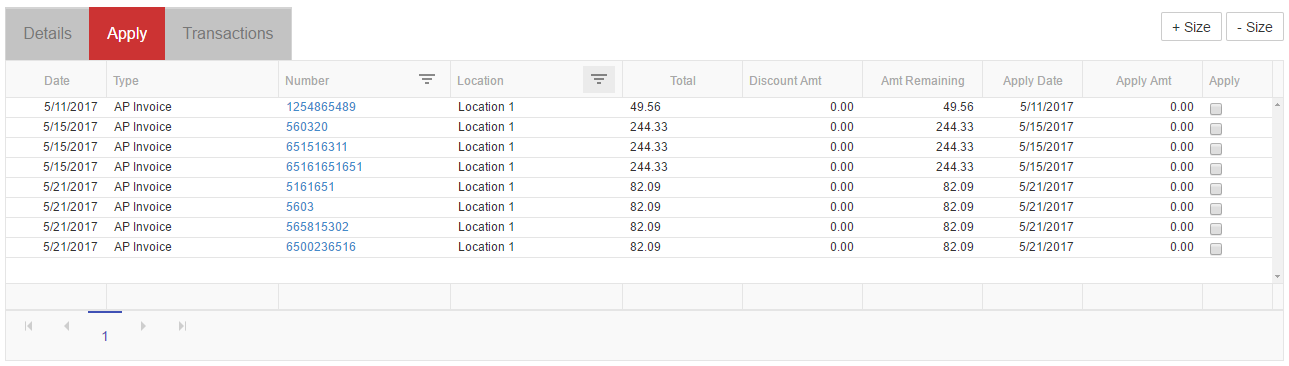
Check the box on the AP Invoice line in the 'Apply column to apply the Credit Memo to the specified invoice. If the desired checkbox appears grayed out, it is due to the AP Invoice being partially applied to the Credit Memo prior to the invoice being placed on hold. Click here to learn more about Payment Holds.

Now that the Credit Memo has been applied, it is ready to be saved and approved.