This article is part of the Tasks Dashboard and covers drilling down on tasks.
Users can drilldown on values shown on the Tasks Dashboard. When a value shown in either the Guide Tasks or Request Tasks information panel is clicked, its associated drilldown page will open. This page will give a detailed look at the tasks that factor into the selected total.
Drill Down on Tasks
To drill down on a task total, click one of the values shown in the Current Tasks section. When a Guide Task value is clicked, users will be shown details about tasks on Task Management Guides. When a Request Tasks value is clicked, users will be shown details about requests including shift and transfer requests.
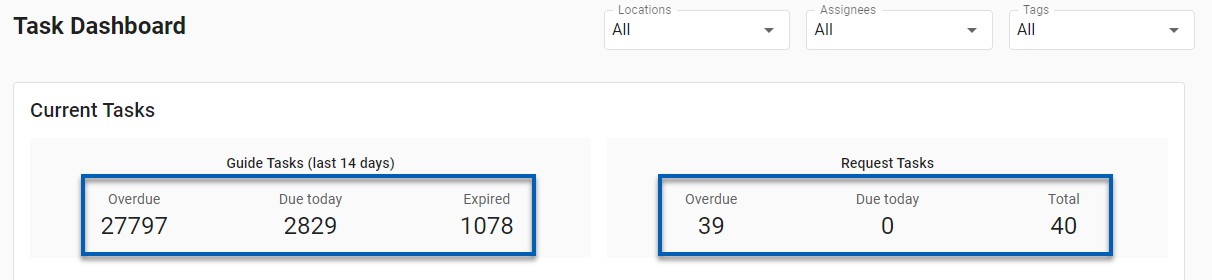
Once clicked, the drilldown page will open where users can explore the details of the tasks factored into the selected total.
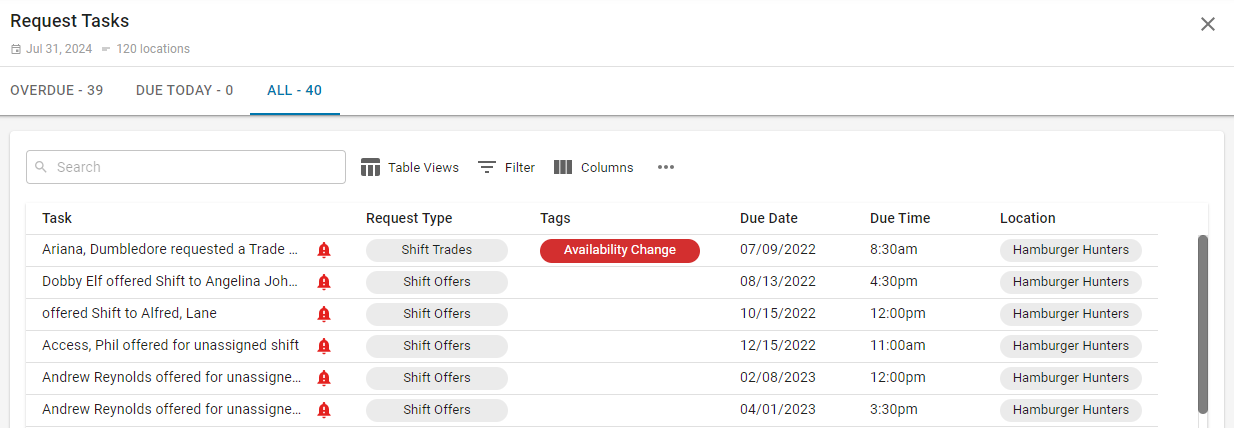
Drilldown Page
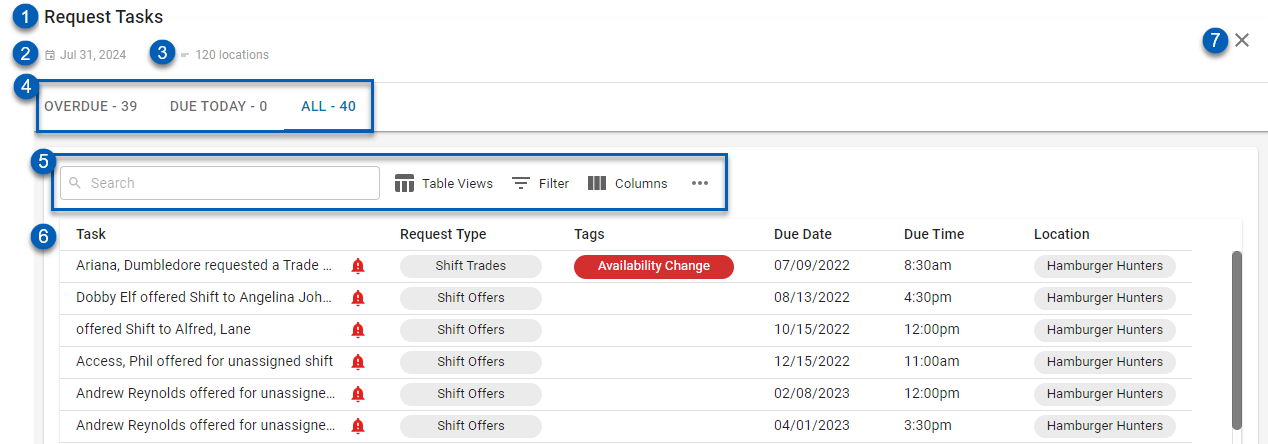
Field | Description | |
1 | Task Type | Whether the task details shown are Request Tasks or Guide Tasks. |
2 | Date | Current date. |
3 | Locations | Number of locations that the task data represents. This will show a location name when only one location is selected. |
4 | Task Category | Task sort categories. These include:
|
5 | Table Actions | As with most smart grids, this table also allows users to perform the following functions:
|
6 | Details Grid | The details about the tasks shown. The details grid shows different information for each of the different task types.
The Request Tasks details grid shows the following information:
|
7 | Close | Closes the drilldown page. |
 - Search for specific keywords.
 - Save/edit table views.
 -Filter the table by certain keywords.
 - Show, hide, or reorganize columns columns.
 - Edit row height to be smaller or larger. This function is accessible from the menu
 .
. - Export the table to a .csv file. This function is accessible from the menu
 .
. - Refresh. This function is accessible from the menu
 .
.FAQ
Why don't Request Tasks have an "Expired" category?
Expired is a Guide Task category only. Request Tasks are sorted into Overdue, Due Today, or All — there's no expiration state for shift or transfer requests. See Task Management Guides for how Guide Task expiration works.
Why does the Details Grid show different columns depending on the task type?
Guide Tasks and Request Tasks track different information. Guide Tasks show Task, Requirement, Tags, Assignee, Due Date, Due Time, Location, Group, and Guide. Request Tasks show Task, Request Type, Tags, Due Date, Due Time, and Location. See Task Management Guides for more on how Guide Tasks are structured.
Why does the Locations field show a name instead of a count?
When only one location is selected on the Task Dashboard, the drilldown page shows that location's name instead of a count. Hover over the field to see the full list when multiple locations are selected.