The Import AP Transactions option in the Create menu is used to bring AP invoice and AP credit memo data into Restaurant365 from a formatted file, instead of entering each transaction manually. This article applies when AP invoices or AP credit memos already exist in another system or spreadsheet and need to be loaded into R365 in bulk.
This import is limited to the following AP transaction types:
AP invoices
AP credit memos
The import supports:
Single-transaction files and multi-transaction files
Both by-item and by-account invoice and credit memo details
This import does not support AP payments.
Imported files must follow the required column structure and rules defined in the AP Import Templates.
Step 1: Click create then select Import AP Transaction

Step 2: Import
The Import Form will load where you can click 'Select File' to open a file explorer and select the completed Template / transaction file. Click 'Open' to import the file.
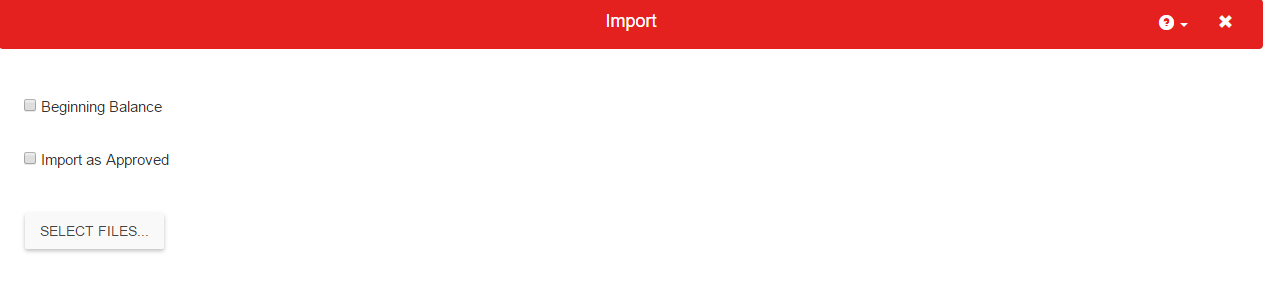
If the import was successful, the number of records created will be displayed. These records will now be listed in the AP Transactions list.

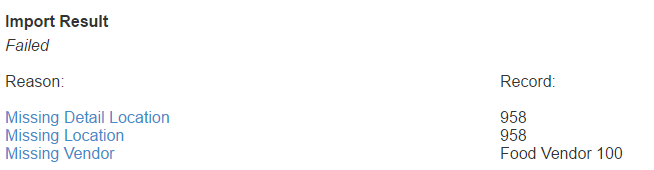
If the import failed, a reason will be displayed along with a troubleshooting link. Click through the link for help troubleshooting the failed import.